
AI Text Automation Step
Table of Contents
- Overview
- Adding the AI Text Step
- The Description Field
- Schedule and Sender Options
- Previews and Reports
- FAQs
Overview
The AI Text step is an automation action that writes each contact their own text from a description you provide. Instead of a fixed message, you describe what each text should say. When the step runs, every contact gets a text written for them, using what Levitate already knows about them and the records the automation matched them on.
The step has no message box, no attachments, and no backup email. The description is the only content you supply.
Note: This step requires AI email campaigns, content generation, and texting to be enabled on your account. If you do not see AI Text in the Add Step list, those features may not be enabled for your account. Anyone who can edit automations can add and edit the step.
A few things to know about how the step behaves:
- The text is plain text. It does not use merge tokens, because each text is written for the individual contact.
- A contact the description plainly does not apply to is left out rather than sent something generic.
- Texts are kept to three message segments, leaving room for the opt-out wording and the sender's signature.
- The step sends to one recipient.
- Writing AI texts counts against the same monthly AI allowance as AI campaigns and AI email steps.
Adding the AI Text Step
- Open the automation you want to edit, or create a new one.
- Open the Add Step list and select AI Text ("Write each contact their own text from a description").
- In the Text title field, give the step a name ("Enter a brief description of this text").
- Enter a description of what each text should say. See The Description Field below.
- Set the schedule, sender options, and skip-contact filter. See Schedule and Sender Options.
- Save the automation.
If you save without a title or a description, the editor asks for both: "Please describe the text you want written, and give the step a name."
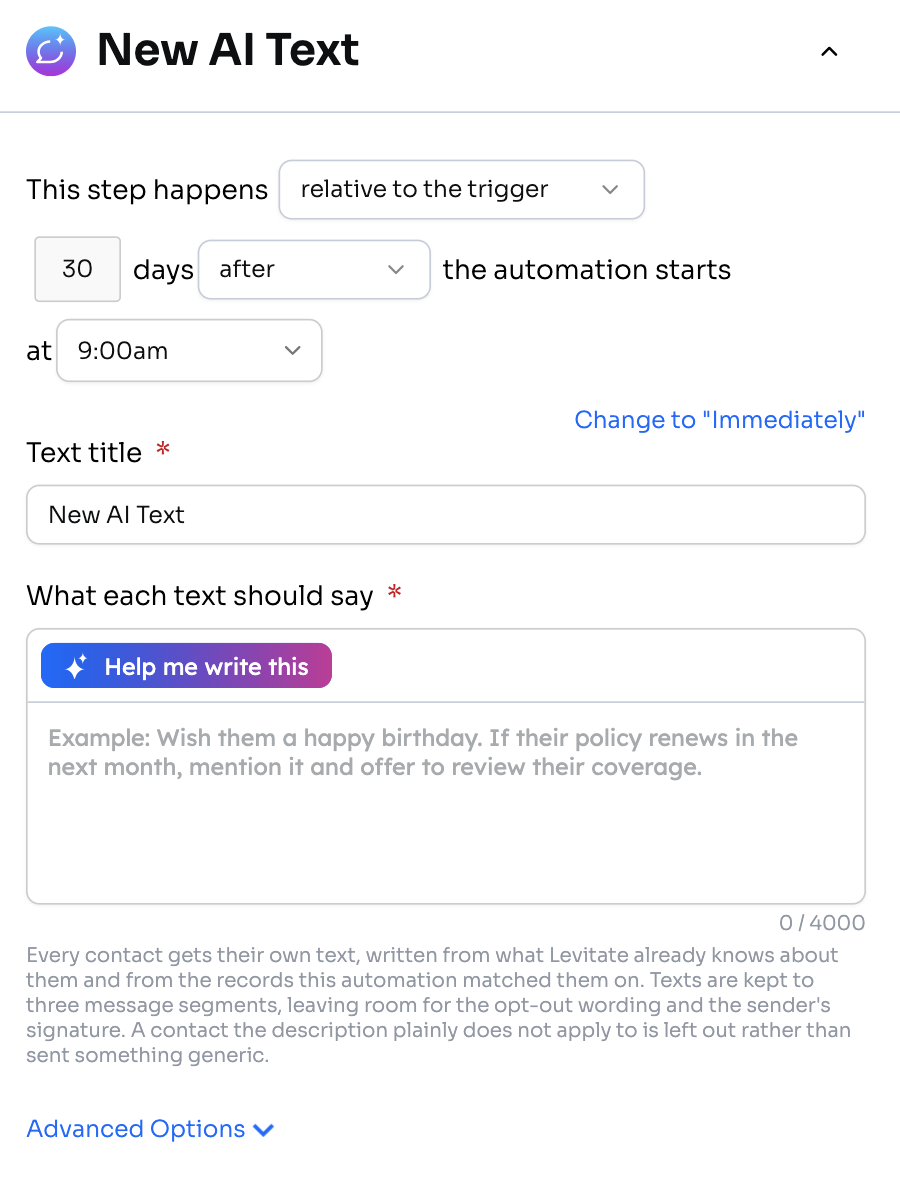
The Description Field
The What each text should say field tells the AI what to write. It is an instruction, not a template, and it does not need to be a complete text. The field shows an example:
- "Wish them a happy birthday. If their policy renews in the next month, mention it and offer to review their coverage."
Because every contact gets a text written for them, a description can include conditions that depend on what Levitate knows about the contact, as the example does with a policy renewal.
Character limit
A counter below the field shows how much of the 4000-character limit you have used, in the form "{n} / 4000". If the description goes over the limit, the editor shows "The description must be 4000 characters or fewer." and:
- The automation cannot be saved.
- The schedule and advanced options are locked.
- The automation cannot be published.
Shorten the description to get back under the limit.
Help me write this
The description field includes a Help me write this menu so you can start from an existing prompt instead of a blank box. The menu offers:
- Samples: sample texting prompts.
- My prompts: prompts you have saved.
- Save as a prompt: saves the description you have written so you can reuse it.
These are texting prompts. They are kept separate from the prompts used by AI email campaigns and the AI Email step.
For the AI Email version of this step, see AI Email Automation Step.
Schedule and Sender Options
The schedule is at the top of the step, above the Text title. The sender options and a skip-contact filter, which leaves out contacts you do not want texted, are under Advanced Options below the description. These controls are locked while the description is over the character limit.
Previews and Reports
Previews, test-contact progress, and automation reports treat the step as a text. In reports, the step type appears as AI text and a contact who received one is shown as Texted.
If Levitate could not write the text for a contact, the report names that contact and shows "The AI text couldn't be written".
FAQs
Q: Can I use merge fields in the description?
A: You do not need to. The text is plain text and does not use merge tokens. Levitate writes each contact's text using what it knows about them and the records the automation matched them on.
Q: What happens to a contact the description does not apply to?
A: A contact the description plainly does not apply to is left out rather than sent something generic.
Q: Can I add an attachment or a backup email?
A: No. The AI Text step has no message, attachments, or backup email.
Q: Does this use my AI allowance?
A: Yes. AI texts count against the same monthly AI allowance as AI campaigns and AI email steps.