
Custom Survey Automations
Custom survey and website form submissions can now directly trigger automations in Levitate. When a contact submits a custom survey or website form embed, they are immediately enrolled in the linked automation — no extra steps required.
Table of Contents
- Setting it up
- Website form submissions
- The previous tag-based approach
- The "Custom Survey Submitted" trigger
Setting it up
To link a custom survey to an automation, you'll need to be an Administrator on the account. Start by choosing Automations from the left-hand navigation menu on your Levitate dashboard.
Select Create New Automation, then choose Custom Survey Automation as the automation type.
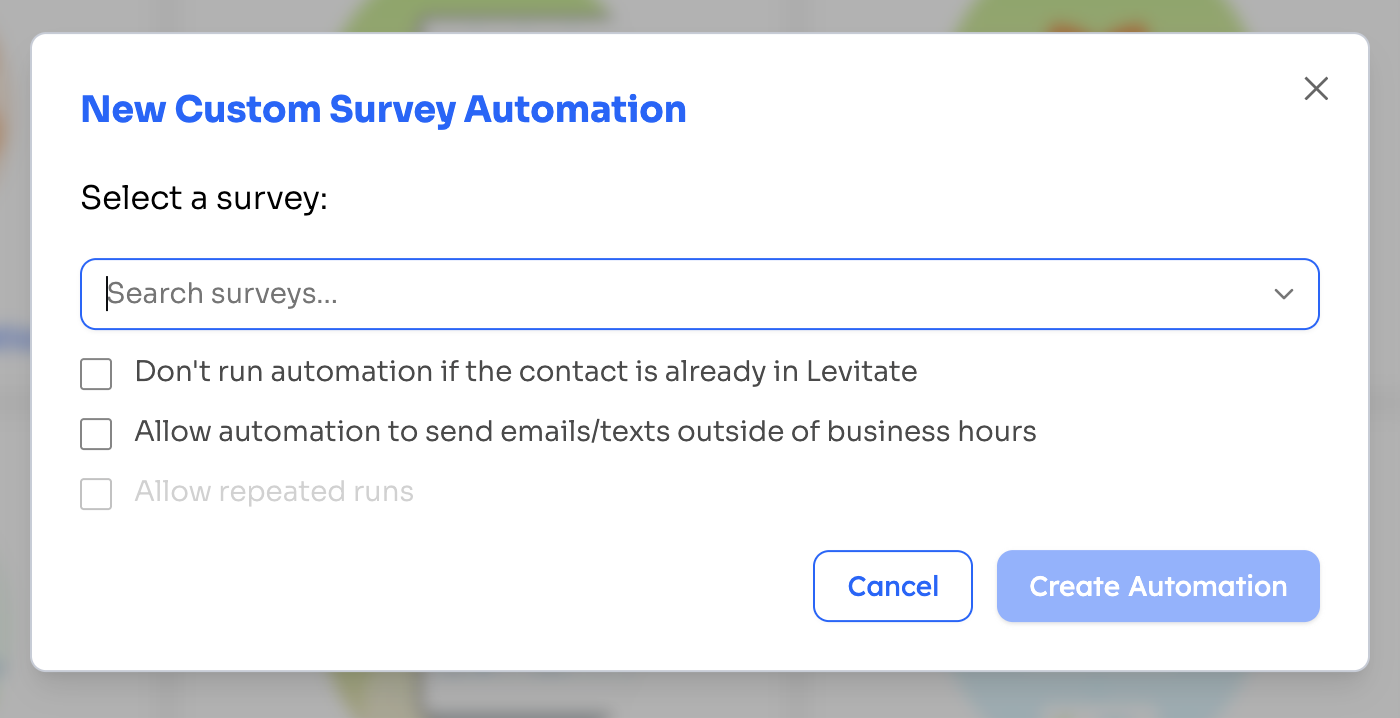
Search for the custom survey you want to use as the trigger and select it. That's all it takes — submission of the survey enrolls the respondent in the automation immediately. Enrollment triggers on any new, finalized, or re-submitted response, and duplicate submissions are deduplicated so a contact is not enrolled more than once per unique response.
Once the survey is linked, the automation works like any other Levitate automation — you can add steps to send emails, text messages, or cards, set conditions to skip steps or stop the automation, and choose who each step is sent from.
Website form submissions
Website form embeds are a type of custom survey and work the same way. If you have a form embedded on your website, link it to an automation using the same steps above. Submissions from the website form will enroll contacts just like a standard survey response.
The previous tag-based approach
Before this feature was available, the standard workaround was a two-step process: configure the survey to apply a tag on completion, then create a separate tag-triggered automation. That approach still works and does not need to be changed — but it is no longer required. The direct survey-to-automation link is simpler and takes effect immediately on submission.
The "Custom Survey Submitted" trigger
Custom Survey Submitted is also available as a first-class trigger type in the standard automation builder. When creating a new automation, choose Custom Survey Submitted from the trigger picker, then select the specific survey to watch. The automation fires each time a contact submits that survey.
A few things to know when setting up this trigger:
- Survey selection is required before saving. The automation cannot be saved without a survey selected in the trigger step.
- Conflicting configurations are flagged. If the selected survey has settings that would prevent the trigger from firing, the builder displays a warning before you save.
- Already-claimed surveys are labeled. If a survey is already linked to another automation, it appears as claimed in the picker so you can avoid splitting submissions across two automations unintentionally.
Note: If you configured a cooldown duration on a Custom Survey Submitted or tag-triggered automation before September 2026, verify the cooldown value in your automation settings. A bug in earlier versions stored cooldown durations at 1/24 of the intended length — a 7-day cooldown, for example, was stored as 7 hours. Re-enter the intended duration to correct it.