
Image Library
The Image Library is a shared collection of images available across your entire Levitate account. When you upload an image while creating an email, signature, template, social post, blog, or newsletter, you can check a box to save it to the library for reuse — or upload images directly from the My Images tab under Campaigns.
Table of Contents
- How Images Are Added
- Using the Image Library
- My Images
- Search and Filter
- Organizing with Folders
- FAQs
How Images Are Added
Images are not collected automatically. To keep the library clean, Levitate requires you to opt in each time: when you upload an image while creating an email, signature, template, social post, blog, or newsletter, check the box to add it to the library. If you skip the checkbox, the image is used in that piece of content but is not saved to the library for reuse.
You can also add images without creating content first — go to My Images and upload files there.
Duplicate detection runs on every image added to the library. If the same file is added more than once (even under a different filename), Levitate stores only one copy, so the library stays clean and free of clutter.
Using the Image Library
Whenever you are inserting an image while editing any content type, open the image picker and switch to the Library tab. You will see all images previously saved to your account. Click any image to insert it directly into your content — no need to download and re-upload.
Note: This includes the event registration and donation survey editors — open the image picker from within either editor and switch to the Library tab to access your saved images there as well.
My Images
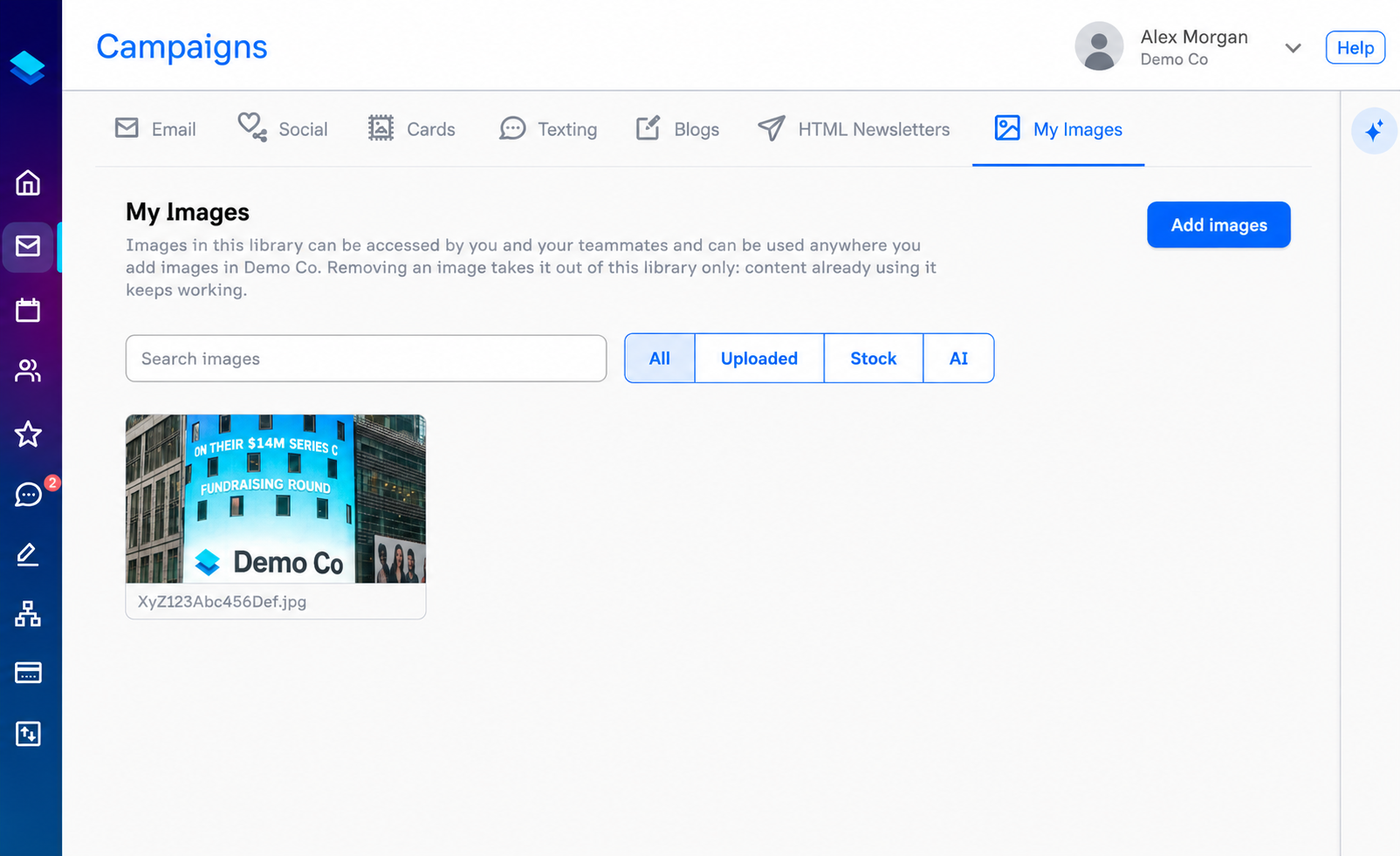
Account admins have access to a My Images tab under Campaigns. This tab lets you browse the full account image library and upload new images directly — without having to create a piece of content first. It is the fastest way to preload a set of logos, headshots, or event graphics so that all users in the account can find them right away in the image picker.
To reach it, go to Campaigns and select My Images from the tab bar. From there you can upload files with Add images or remove images that are no longer needed.
Note: Removing an image from the library does not affect any content that has already been sent or published. Sent emails, published blogs, and posted social content continue to display the image as before.
Search and Filter
As the library grows, the search and filter controls help you find the right image quickly:
- Search — type a filename or keyword to narrow results by name.
- Type filter — filter by All, Uploaded, Stock, or AI to narrow results by how the image was added to the library.
Organizing with Folders
Images in My Images can be grouped into folders to keep large libraries manageable. A folder panel on the left side of the My Images tab lists every folder in your account; selecting one filters the library to images tagged to that folder.
To add one or more images to a folder, select them using the checkboxes and choose Add to folder from the selection bar. An image can belong to multiple folders at once — folders are tags rather than nested directories, so the same image can appear under several folder names. To remove an image from a folder, open the card and unfile it from there directly.
The folder panel also appears in the image picker when composing a post, letting you browse by folder while you work. That view is read-only; folder management takes place on the My Images tab.
FAQs
Q: If I delete an image from the library, will it disappear from emails I already sent?
A: No. Removing an image from the library only removes it from the picker — it has no effect on content that has already been sent, published, or posted. Contacts who received an email or viewed a blog with that image will continue to see it normally.
Q: Can users outside of admin roles access the Image Library?
A: Yes. All users can browse and reuse images from the library through the image picker while editing content, and can check the box to save new images to the library as they upload them. The dedicated My Images tab under Campaigns — which allows direct uploads and bulk management — is available to account admins only.
Q: What happens if I upload the same image twice?
A: Levitate detects duplicate images and stores only one copy, regardless of the filename. The library will not accumulate identical images from repeated uploads.