
Email Exec Assistant
The Email Exec Assistant is an AI-powered tool that helps you manage high email volume by monitoring your inbox for relevant messages and suggesting ready-to-send, AI-drafted responses — so you can stay on top of client communication without spending hours in your inbox.
Watch the video below for a quick walkthrough, or read on for the full breakdown.
Note: Email Exec Assistant must be enabled for your account; contact your Success Manager to get started.
How It Works
The Email Exec Assistant continuously monitors your incoming emails and looks for messages that match the keywords and priorities you define in your personal template. When it finds a relevant email, it drafts a suggested response tailored to your communication style and the content of the message.
Because each user configures their own template, the assistant's behavior is personalized to your role, your clients, and the types of email conversations that matter most to you. Emails that don't match your priorities can be filtered out so the assistant stays focused on what's signal, not noise.
What the Agent Delivers
For each email the assistant identifies as relevant, it produces:
- Action-needed flag — the assistant highlights emails that require a response so they don't get buried.
- Keyword hit summary — a brief note on which of your monitored keywords matched and why the email was surfaced.
- AI-drafted reply — a suggested response written in your communication style, ready to review and send (or edit) with one click. Replies are sent from your connected email account and stay in the original conversation thread in both Gmail and Microsoft (Outlook / Microsoft 365).
The assistant surfaces only emails that match your template — routine messages, newsletters, and automated notifications you've told it to ignore are filtered out automatically.
Guardrails & Privacy
The Email Exec Assistant is designed with several built-in protections:
- PII handling — sensitive personal information in email content is not stored beyond what is needed to generate a draft response.
- Explicit confirmation required — the assistant never sends a response on your behalf. Every suggested reply requires your explicit approval before anything leaves your outbox.
- Phishing and fraud detection — the assistant flags emails that show characteristics of phishing attempts or fraudulent requests and will not draft a reply for them. These emails are surfaced to you with a warning instead.
Requirements
- Connected email account — the assistant works with email accounts connected to Levitate via OAuth. If your email is not yet connected, go to Settings > Email to authorize access.
- Feature enablement — the Email Exec Assistant must be enabled for your account. Reach out to your Success Manager to turn it on.
Setting Up Your Personal Template
Your personal template controls how the Email Exec Assistant behaves. It has two key fields:
Monitored Keywords
Enter the keywords or phrases the assistant should watch for in incoming emails. When an email contains one or more of these terms, the assistant treats it as a candidate for a suggested response. Use keywords that reflect the topics, requests, or client situations you most commonly need to respond to — for example, terms related to account reviews, meeting requests, referrals, or specific products your clients ask about.
Ignore Noise Notes
Use this field to tell the assistant which types of emails or topics to filter out or deprioritize. For example, you might instruct it to ignore automated notifications, newsletter subscriptions, internal distribution lists, or routine system alerts. The more specific your instructions here, the better the assistant can focus its suggestions on emails that actually need your attention.
Help Me Write This for What to Ignore
The What to ignore box in your Email Exec Assistant settings has a Help me write this toolbar above it, so you can start from an existing prompt instead of a blank box:
- Levitate Samples — 10 ready-made prompts written by Levitate that describe email to leave out of your brief. Some samples are written for insurance, real estate, financial, or mortgage practices.
- My prompts — prompts you have saved from this box.
Picking a prompt fills in the box with its text, which you can then edit.
Save as a prompt
Use Save as a prompt to keep your own ignore instructions so you can reuse them later.
If a prompt you picked contains a placeholder in square brackets, replace it with your own details before you save. A prompt with an unfilled placeholder can't be saved.
Note: Each box keeps its own list of prompts. Prompts saved from the What to ignore box appear only under that box's My prompts, and the prioritize box has its own separate samples and saved prompts.
Saved and Shared Prompts for Instruction Fields
The Help me write this toolbar appears above both standing instruction fields, the one for what to prioritize and the one for what to ignore. It works the same way as in AI email campaigns:
- Samples — prompts written by Levitate. Each field has its own samples, so the samples for what to ignore never appear in the prioritize picker, and the other way around.
- My prompts — prompts you have saved, listed under Yours, followed by prompts your teammates have shared, listed under Shared with the team.
- Browse all prompts — opens a side panel where you can look through all available prompts.
Use Save as a prompt to keep the instructions you have written. You can save a prompt privately or share it with your team.
If a prompt you picked still contains a placeholder in square brackets, replace it with your own details first. Saving is unavailable until every placeholder is filled in.
The ignore field is limited to 5,000 characters. If you pick a saved prompt that is longer than the limit of the field you are filling in, the text is trimmed to that limit.
Covering Colleagues' Mailboxes
SuperAdmins can have their Email Exec Assistant brief cover teammates' mailboxes as well as their own — for example, while a colleague is away. The emails from every covered mailbox are combined into a single brief, and the brief shows how many mailboxes it covered, for example "Covered your mailbox and 4 teammates."
To set it up, go to Settings > Personal > Email Exec Assistant and choose an option under Mailboxes this brief covers:
- Only my mailbox — the default.
- Everyone on the account (up to 10 mailboxes)
- Choose people — pick up to 10 teammates. Only active teammates whose mailbox is connected through Gmail, Microsoft 365 / Outlook, Yahoo, or AOL can be chosen. Mailboxes connected through IMAP, Exchange, or send-only (SMTP) can't be read by the brief.
Note: This setting is visible to SuperAdmins only. Personal email found in a teammate's mailbox is never included in the brief, even if it matches a monitored keyword.
Awaiting Reply
The Email Exec brief calls out emails that are still waiting on a reply from you. It lists threads where someone wrote to you and you haven't responded, with the sender, the subject, when they last wrote, and how many business days they've been waiting. When nothing is waiting, this part of the brief is left out.
By default, a thread is listed once it has gone unanswered for 3 business days if the sender is one of your contacts, or 7 business days for anyone else. Your own instructions to the assistant can change these thresholds.
Getting Started
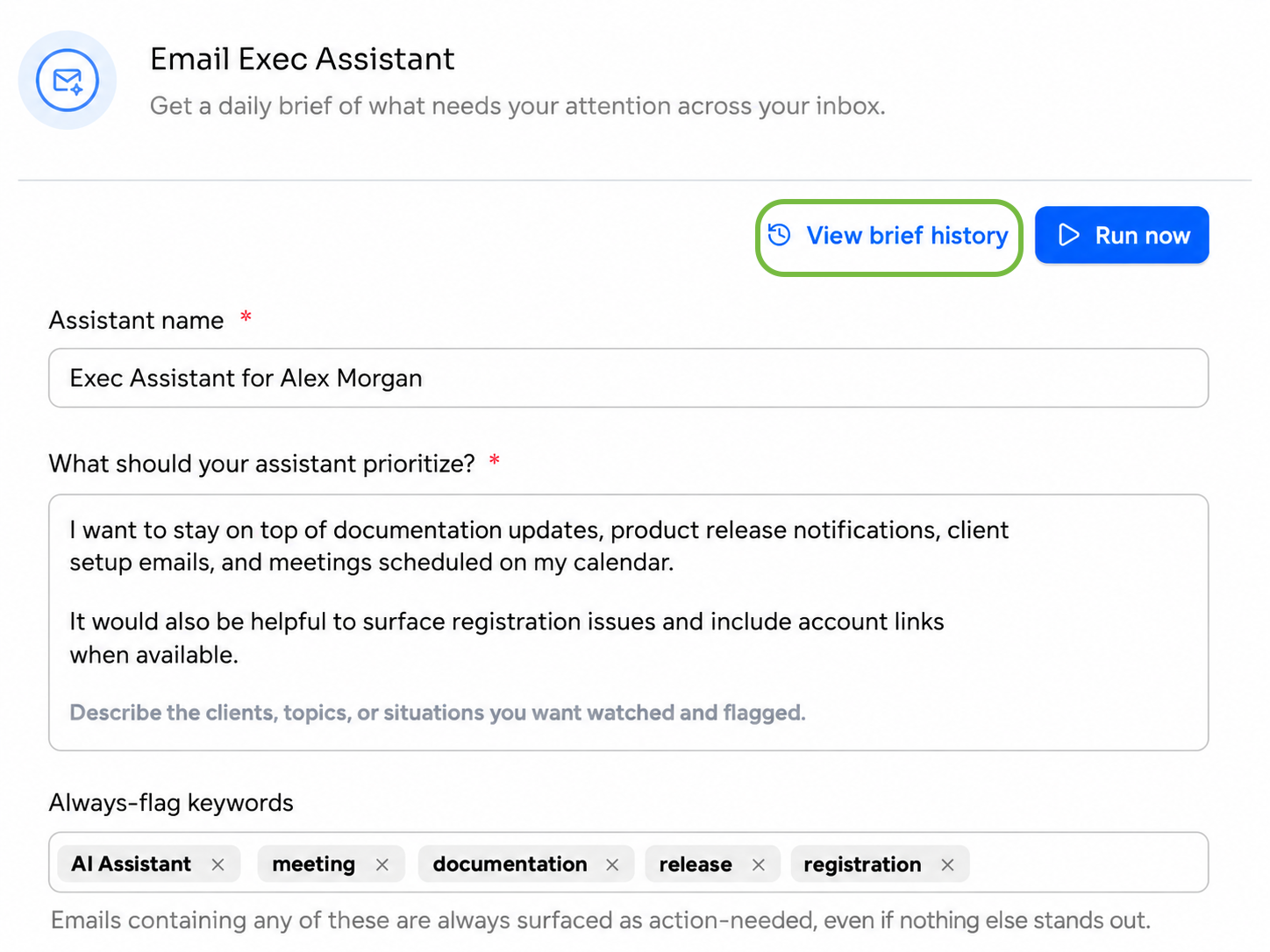
- Navigate to your account settings and open the Email Exec Assistant section.
- Locate the Personal Template settings panel.
- In the Monitored Keywords field, enter the keywords or phrases you want the assistant to watch for. Separate multiple entries with commas.
- In the Ignore Noise Notes field, describe the categories of email the assistant should deprioritize or skip entirely.
- Save your template. The assistant will begin applying your settings to incoming emails immediately.
Email Brief History
The Email Exec Assistant keeps a log of your recent runs, including failed runs with the reason they didn't complete. You can go back and review the exec briefs it generated in previous sessions. The run history page shows each past run along with the emails the assistant surfaced, the keyword matches that triggered each one, and any AI-drafted replies that were produced.
To access your run history, navigate to the Email Exec Assistant section in your account and select View brief history. From there you can browse past briefs, see which emails were flagged in each run, and revisit the suggested responses the assistant drafted at the time.
Run history is read-only. You can review past briefs and drafts for reference, but actions such as approving or sending a reply must be taken when the assistant surfaces a suggestion — not retroactively from the history view.
Updating Settings from the Brief Chat
When reviewing an Email Exec brief, you can adjust your assistant settings through the brief chat without leaving the conversation. Tell the assistant in plain language what you want to change, and it will read and save your updated preferences on the spot.
From the brief chat, you can update:
- Monitored Keywords — add or remove terms the assistant should watch for in incoming emails
- Ignore Noise Notes — add or update instructions for the types of emails the assistant should filter out
For example, you might say "Add 'policy renewal' to my monitored keywords" or "Ignore emails from our internal distribution lists." The assistant confirms each change in the conversation, and your updated settings take effect starting from the next run.
Note: Setting changes made in the brief chat apply to future runs only. They do not re-evaluate or re-surface emails already shown in the current brief.
Brief Documents and Attachments
Email Exec briefs now include a generated document attached to your digest email for that run. The attachment is available as a formatted deck or PDF and gives you a portable summary of the emails surfaced and any AI-drafted responses from the session.
Email Exec Assistant on Mobile
The Email Exec Assistant is available in the Levitate mobile app, giving you access to your inbox briefs and AI-drafted replies from your phone.
Brief History
The mobile app shows your 50 most recent briefs. Older briefs are not loaded by default to keep the view fast; the list is capped at 100 briefs if you scroll back further through your history.
Push Notifications
Mobile push notifications for new Email Exec briefs are off by default. To turn them on, go to Settings > Notifications in the mobile app and enable Email Exec Assistant notifications. Once enabled, you will receive a push notification each time a new brief is ready.
Note: Push notifications require the Levitate mobile app to be installed and notification permissions granted at the device level. If you do not see the notification option in Settings, update the app to the latest version.
FAQs
Q: Which email providers are supported?
A: The Email Exec Assistant works with email accounts connected to Levitate via OAuth — currently Google (Gmail / Google Workspace) and Microsoft (Outlook / Microsoft 365). If your provider is not listed, contact your Success Manager.
Q: Does my template affect other users on my team?
A: No. Each user's template is personal — your Monitored Keywords and Ignore Noise Notes only apply to your own Email Exec Assistant. Other team members configure their own templates independently.
Q: Who can access the Email Exec Assistant?
A: The feature must be enabled for your account by your Success Manager. Once enabled, any user who has connected their email via OAuth can set up their personal template and start using the assistant.
Q: How many keywords can I add to Monitored Keywords?
A: There is no strict limit on the number of keywords you can enter. However, keeping your list focused on the terms most relevant to your work will help the assistant surface higher-quality suggestions rather than triggering on broad or generic matches.
Q: What happens if an email matches a keyword but also fits my Ignore Noise Notes?
A: The Ignore Noise Notes take precedence when both conditions apply. If you have instructed the assistant to filter out a certain type of email, it will respect that instruction even if the message contains a monitored keyword.
Q: Can I update my template at any time?
A: Yes. You can edit your Monitored Keywords and Ignore Noise Notes at any time. Changes take effect immediately for new incoming emails — the assistant does not retroactively re-evaluate emails that arrived before the update.
Q: Will the Email Exec Assistant send responses on my behalf automatically?
A: No. The assistant suggests AI-drafted responses for your review. You decide whether to send, edit, or discard each suggestion. Nothing is sent without your explicit approval.
Q: What happens if the assistant detects a phishing or fraudulent email?
A: The assistant will flag the email with a warning and will not draft a suggested reply for it. You'll see the email surfaced with a fraud indicator so you can decide how to handle it directly.