
AI Features in the Email Plugin
The Levitate Email Plugin includes AI-powered features that help you capture follow-up actions and draft replies without leaving your inbox. These features are available in the plugin's Note editor when you're viewing an email from a contact.
Note: AI features in the Email Plugin require the Content Generation feature to be enabled on your account. Reach out to your Success Manager to confirm access.
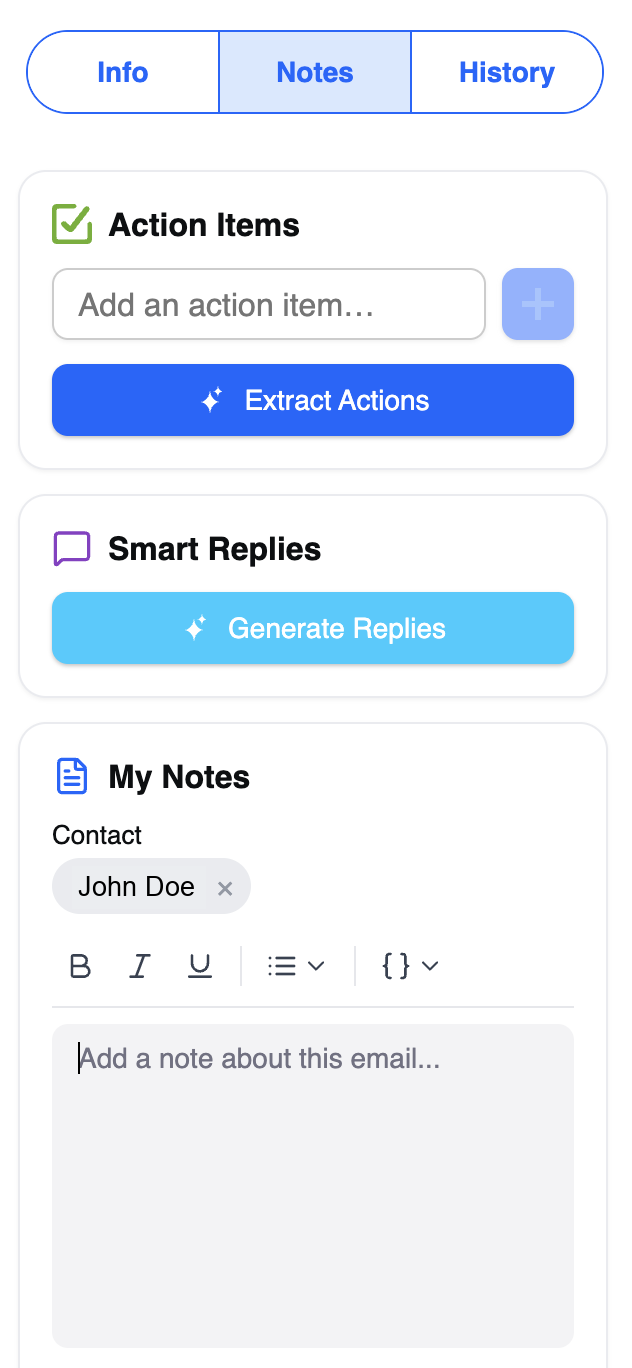
Extract Action Items
After reading an email, you can ask the AI to identify any commitments, tasks, or follow-ups mentioned in the conversation and save them as action items on the contact.
How to use it
- Open the Levitate Email Plugin while viewing an email from a contact.
- In the Notes tab's Action Items card, select Extract Actions. (The button is available while an email is open.)
- The AI reads the email and proposes a list of suggested actions, sometimes with a due date.
- Review the suggestions and dismiss any that don't apply.
- Select Save [N] actions to save the remaining suggestions as action items on the contact, or Dismiss to discard them all. If nothing actionable is found, the plugin says so.
Generate Replies
The AI can draft replies to the email you're viewing. Each draft is labeled with its tone, and you open the one you like directly as a reply in Outlook.
How to use it
- Open the Levitate Email Plugin while viewing the email you want to reply to.
- In the Notes tab, find the Smart Replies card and select Generate Replies.
- The AI produces reply drafts, each with a heading describing its tone.
- Select Open & edit on a draft — it opens as a reply in Outlook, where you can edit it before sending.
Smart Replies are also available while you're writing a reply: when your draft contains the earlier conversation, a Smart Replies card appears in the compose pane, and Insert reply places the generated text directly into your draft.
Ask Lev in the Outlook Add-in
Ask Lev is an AI assistant dock built directly into the Levitate Outlook add-in. You can ask questions, get help drafting emails, and pull up contact details — all without leaving your inbox. Answers stream in as they are generated, and the assistant can reach into your Levitate data to surface contact information or compose an email on your behalf.
Note: Ask Lev in the Outlook add-in is gated on the Content Generation feature flag and is not enabled by default. Contact your Success Manager to enable it for your account.
The Ask Lev dock sits at the bottom of the plugin pane on every screen, including while you are composing an email. Expand it to chat — Lev greets you by name. The + button starts a new chat, you can drag the handle above the dock to resize the conversation, and when you reopen the pane Ask Lev picks up your most recent conversation where you left off.

Streaming answers
Ask Lev responds in real time — the answer appears word by word as it is generated, so you can start reading before the full response finishes.
Email and contact tool blocks
When Ask Lev looks up a contact or drafts an email, the results appear as structured cards inline in the conversation. A contact card opens that contact's profile in the pane, and a contact-list result offers a Show all contacts button that opens the filtered list in the Levitate web app. When Ask Lev drafts an email, select Use this email to open it as a new Outlook draft with the subject and body filled in — you add the recipients in Outlook before sending.
Note: A few Ask Lev features are available only in the Levitate web app — generated images, meeting scheduling, and the content calendar. When a conversation produces one of these, the plugin says so and points you to the browser.
Voice dictation
Instead of typing, you can dictate your question using your microphone. Click the microphone icon in the Ask Lev input field and speak — the transcription appears in the text box as you talk. Tapping the microphone again turns it off and sends the dictated message.
Note: Voice dictation is available in Outlook on the web and the new Outlook on Windows. The microphone button does not appear in Outlook for Mac.
File attachments
You can attach files to your Ask Lev conversation — up to 5 files of 20 MB each (PDF, PNG, JPG, WebP, and plain-text formats like TXT, Markdown, and CSV). The assistant reads the attached content and incorporates it into its response — useful for referencing a document, proposal, or report while asking a follow-up question.
Conversation history and management
Ask Lev keeps a full history of your past conversations in the Outlook add-in. Select the history icon in the dock header to open a popover listing previous chats — each entry shows the conversation title, a relative timestamp, and a live "Responding..." indicator if that thread is still streaming. Select any entry to jump back to it.
To rename a conversation, click the pencil icon next to its title, type the new name, and click the checkmark to save.
Selecting New Chat opens a fresh, empty session without creating a record until you send your first message — so unstarted conversations no longer appear in your history.
Multiple conversations can stream responses at the same time. If you switch to another thread while one is still responding, that thread continues in the background and your progress is not lost when you return.
FAQs
Q: Does the AI send the reply automatically?
A: No. The AI generates drafts that appear in the plugin. Opening or inserting one puts it in a reply for you to review — nothing is sent without your review and action.
Q: What context does the AI use when generating a reply?
A: The AI uses the current email thread visible in your inbox and any notes recorded on the contact in Levitate. It does not access your full email history or other unrelated contacts.
Q: Can I use these features in both Gmail and Outlook?
A: AI features are available in the Outlook Plugin, provided the Content Generation feature is enabled on your account. The Levitate add-on for Gmail does not include AI features.
Q: I get an error when I select Extract Actions or Generate Replies. Why?
A: The Extract Actions and Generate Replies buttons appear for every account, but they only work when the Content Generation feature is enabled — without it, selecting them shows an error. (Ask Lev is hidden entirely when the feature is off.) Contact your Success Manager to confirm whether Content Generation is enabled on your account.
Action Items on the Contact Timeline
Action items created through Extract Actions are saved to the contact's timeline in Levitate and persist across page reloads. Each action item appears as a timeline entry showing the text of the action, the date it was extracted, and the email thread it came from. You can review all captured action items on the contact's profile without reopening the email plugin.
History Tab
The Email Plugin includes a History tab alongside the Notes tab. The History tab shows the full communication timeline for the contact you are currently viewing — emails sent, notes recorded, and action items captured — grouped by day. Use it to get context on your relationship with the contact without leaving your inbox.