
CC a Team Member on Emails
You can automatically CC a team member on emails sent through Levitate — useful for keeping a second person in the loop on lead outreach or shared client communication.
Setup
Reach out to your Customer Success Specialist or Levitate Support to enable the CC employee during a campaign send setting on your account.
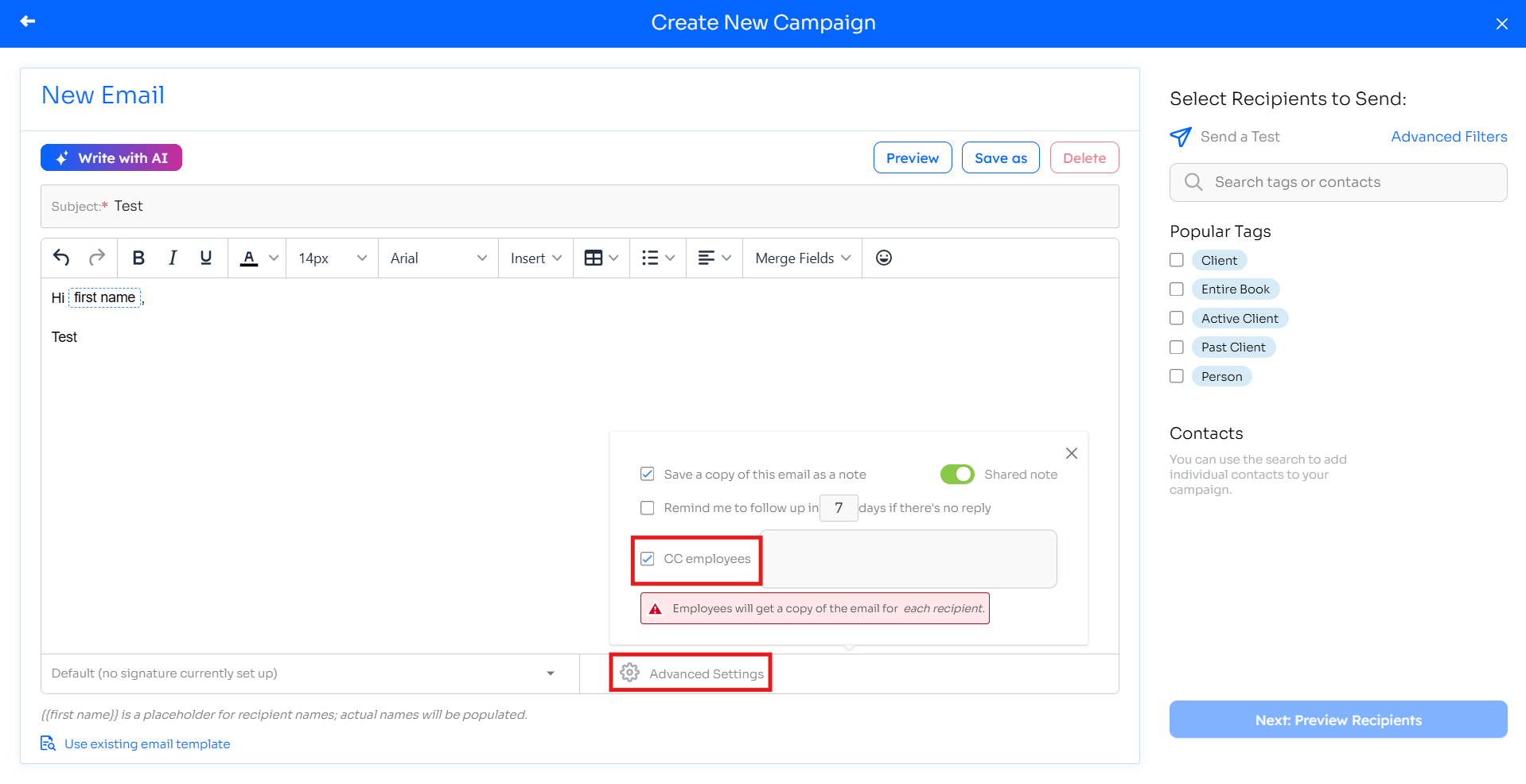
Once enabled, the CC employees option appears in the email composer under Advanced Settings. Check the box and select the team member(s) you want copied on outgoing sends.
How It Works
- The CC'd team member must be an active User on the Levitate account.
- The CC'd user receives a copy of every outgoing send while CC is selected for that campaign.
- This is a true CC — recipients can see the CC'd address in the email header.
- When CC is enabled, a warning appears in the composer: "Employees will get a copy of the email for each recipient."
FAQs
Q: Can I CC my assistant on every email I send from Levitate?
A: Yes — an admin needs to enable the CC employee during a campaign send setting first. Once enabled, you can select team members to CC from the Advanced Settings section of the email composer. Recipients see the CC'd address, since this is a true CC.
Q: What does the "+1" mean next to an email in a Contact Record?
A: When viewing email activity in a contact record, you may see a "+1" next to a sent email. The "+1" means the email was sent to more than one recipient — Levitate summarizes additional recipients with a "+1" indicator instead of listing every contact in the activity feed.
This typically occurs when:
- A contact is CC'd on an email
- Multiple recipients are included in the thread
- A reply-all email is sent
Q: How can I see everyone included on the email?
A: To view the full recipient list, open the original email in your connected inbox.
Q: I typed [CC:email] (or similar text) in my email body or subject line, but it appears literally in the sent message. How do I CC someone?
A: Levitate does not use a [CC:email] merge-tag syntax. CC is not configured by typing text into the email body or subject — any such text will appear literally in the sent message. To CC a team member, open the email composer, expand Advanced Settings, check the CC employees box, and search for the team member you want to copy. If the CC employees option is not visible, the feature may not be enabled on your account — contact your Customer Success Specialist or Levitate Support to enable the CC employee during a campaign send setting.
Q: The CC employees option does not appear in my email composer. Why?
A: Two reasons the option may be missing: (1) The CC employee during a campaign send setting has not been enabled on your account — contact your Customer Success Specialist or Levitate Support to request it. (2) CC is only available when composing a campaign send. It is not available when sending an individual one-off email from a contact record or from the Send Message dialog.