
Automation Troubleshooting
Understanding How Automations Start
Automations in Levitate can trigger based on various conditions, including dates, tags, contact creation, and integration events. However, the timing and method of triggering depends on the automation type and your account settings.
How Date-Based Automations Trigger
Date Field Automations
When you set up an automation based on a date field (birthday, anniversary, policy renewal, etc.):
Automatic vs. Manual Triggering:
- Date-based automations typically check for qualifying contacts on a daily schedule
- If you add or update a date today, the automation won't immediately start
- The system runs qualification checks overnight or at scheduled intervals
- Contacts with dates within the automation's window will enter the automation flow
Example:
- Automation: "Send birthday email 7 days before birthday."
- You add a contact with a birthday on December 15
- On December 8, the automation will automatically queue this contact
- Email sends on schedule without manual intervention
Why Dates Don't Trigger Immediately:
- Performance optimization - checking all contacts in real-time would slow the system
- Batch processing ensures reliable delivery across all accounts
- Prevents duplicate sends if multiple updates happen to the same contact
What Happens When You Update a Date
- Update is saved immediately to the contact record
- The next daily qualification check (within 24 hours) will evaluate the new date
- If the date falls within the automation's window, contact enters the flow
- No manual action required after updating the date
Tag-Based Automation Triggers
How Tag Triggers Work
Tag-based automations in Levitate are set to Manual Start by default for most account configurations:
- Adding a tag to a contact does NOT automatically start the automation
- You need to manually start the automation from the automation management screen
- This is intentional to give you control over when automations begin
Why Tag Automations Require Manual Start
Intentional Design:
- Tags are often added in bulk during imports or cleanup
- Automatic triggering could cause mass unexpected sends
- Manual start gives you the opportunity to review contacts before sending
- Allows time to verify tag assignments are correct
Exception: Automatic Tag Triggers
Some Levitate accounts have automatic tag triggering enabled for specific workflows:
- Integration-based tag additions (e.g., from CRM systems)
- Specific account configurations set up by your Success Specialist
- Special use cases where immediate automation is required
If you need automatic tag triggering, contact your Success Specialist or Levitate Support.
Integration-Based Triggers
Integration events (like new donations, form submissions, or CRM updates) work differently from tag and date-based automations:
- These triggers are event-driven, meaning they fire immediately when the event occurs
- No daily processing delay
- Contacts enter the automation flow as soon as the integration event is detected — typically within minutes
Contact Creation Triggers
When a new contact is created in Levitate:
- Contact creation automations can fire automatically
- The system evaluates new contacts against active contact creation automations
- Timing depends on how the contact was added (manual entry vs. import vs. integration)
Common Automation Problems and Solutions
Problem: Contacts Not Entering Automation
Possible causes and solutions:
- Automation is inactive: Activate the automation
- Tag not properly assigned: Verify tag assignment and spelling
- Date not within window: Check automation date range settings
- Contact already in or completed the automation: A contact who is currently enrolled or has already finished won't re-enter — check the contact's automation history
- Waiting for daily processing: Allow up to 24 hours for date-based triggers
- Manual start required: Manually start tag-based automation
- Conflicting start conditions: Review the automation start conditions, filters, and offset settings for anything excluding the contact
Problem: Automation Sends at Wrong Time
- Review business hours settings
- Check time zone settings for your account
- Verify the automation's send time configuration
- Consider that processing happens overnight for date-based automations
Problem: Automation Sends Duplicate Messages
- Check if contact is in multiple active automations
- Review automation restart settings
- Verify there's only one active version of the automation
- Check if manual starts were accidentally performed multiple times
Problem: Automation Stops Unexpectedly
- Automation was disabled or archived, or the contact's automation was cancelled
- Contact reached the end of the automation flow
- An error occurred in a specific automation step
Note: Removing a tag does not stop an automation a contact has already started. It only removes contacts whose automation is still on hold (queued but not yet started).
Problem: A Step Was Skipped Instead of Sending
Some automation steps are scheduled relative to an anchor date or event — a meeting, a birthday, a renewal date, a Turning XX age, etc. — rather than relative to when the automation itself started. If the anchor event happens with less lead time than the step's configured offset, the step's calculated send time has already passed by the time the automation evaluates it, and the step is skipped rather than sent immediately.
Example: A step is set to send 14 days before a meeting. If a contact books a meeting only 5 days out, that step's calculated send time already falls in the past the moment the automation starts, so it is skipped instead of sending right away.
Note: This skip behavior only applies to steps scheduled relative to an anchor event. Steps scheduled to send "immediately" or a number of days after the automation starts, with no offset, are bumped forward to send right away if their time has already passed — those are not skipped.
To avoid this, set anchored steps to a shorter window that fits your typical lead time (for example, 7 days before instead of 14), or configure the step to send immediately when the anchor event occurs on short notice.
Manual Automation Management
When to Use Manual Start
- Tag-based automations that require oversight
- When you want to review contacts before sending
- Testing automation flows with specific contacts
- One-time campaigns wrapped in automation format
How to Manually Start an Automation
- Go to Contacts in your Levitate account
- Select the contacts you want to include (for a single contact, open their profile)
- Click Start Automations in the action bar (Start Automation on a single contact)
- Choose the automation to start
When you add a tag that has an automation attached, Levitate also offers to start that automation for the contact.
Note: Large contact lists may take time to fully send — messages go out gradually based on your send spacing and daily limits rather than all at once.
Automation Alternatives For Immediate Needs
If you need immediate action rather than waiting for automation processing:
Direct Campaigns
- Send campaigns directly to tag groups
- Immediate delivery without automation delays
- Good for time-sensitive communications
Manual Campaign Sends
- For immediate communication needs
- Use campaign instead of automation
- Full control over timing and recipients
Publish Errors
"Source step ID is required when using email or text engagement cases"
This error appears when you try to publish an automation that contains an engagement case step — a conditional branch that waits to see how a contact interacts with an email or text message (for example, "opened email" or "clicked link") — but that step has not been linked to the email or text step it should watch.
Every engagement case step must know which email or text step in the automation it is monitoring. If that connection is missing, the automation cannot be published.
How to fix it:
- Open the automation and locate the step mentioned in the error (e.g., "Step #2").
- Select that engagement case step to open its settings.
- Look for the Source Step (or Watch Step) field and choose the email or text step that the engagement cases should monitor.
- Save the step and try publishing again.
Note: If the source step field is already set but you are still seeing this error, verify that the email or text step it references still exists in the automation and has not been deleted or replaced.
"Conditional Behavior cannot be published. All steps must have the scheduled as anchored"
This error appears when you try to publish a date-anchored automation — such as a Birthday, Renewal, Turning XX, or Financial Review automation — that contains a Conditional Behavior branch, but one or more steps inside that branch have their timing set as a floating offset from the automation start rather than relative to the anchor date.
Date-anchored automations require every step (including steps inside Conditional Behavior branches) to be scheduled relative to the anchor event — for example, "30 days before birthday" — rather than "X days after automation starts." When a step inside a branch uses the wrong schedule type, the automation cannot be published.
How to fix it:
- Open the automation and expand the Conditional Behavior branch that is failing.
- Click each step inside the branch to open its settings.
- Locate the step's timing / schedule field. If it is set to a number of days after the automation starts (rather than before or after the anchor date), change it to a date anchored to the triggering event — for example, "30 days before renewal date."
- Repeat for every step in every conditional branch within the automation.
- Save each step, then try publishing again.
Note: This requirement applies to all steps inside Conditional Behavior branches in date-anchored automations (Birthday, Renewal, Turning XX, Financial Review, and custom date-based automations). Steps in these automations cannot use a floating "days after automation starts" schedule.
Troubleshooting Stuck "In Progress" Automations
If your automation is showing an In Progress status but doesn't seem to be moving forward, there are a few common causes — most of which you can diagnose and fix on your own.

Common causes
- Daily send limit reached. Each user's daily email limit depends on their connected email provider (typically 150–350) and is measured over a rolling 24 hours. Texting limits depend on your texting registration. Sending resumes as earlier sends age out of that 24-hour window — no action needed.
- Missing contact data. If a contact is missing a required field (like an email address or phone number), the system will skip that step for them. Check the affected contact records and fill in any missing information.
- Email or phone connection lost. If your account has been disconnected, the automation can't send. To reconnect your email, go to Settings → Profile and click Connect to a different email. For your phone number, go to Settings → Texting (shown when texting is turned on for your account).
- Automation was disabled or cancelled. Check the Inactive tab of the Automations Report for a disabled or archived automation, and check the contact's steps for a Cancelled status.
- Step scheduled for a future date. If steps have wait periods or future-scheduled dates built in, the automation may simply be waiting. Check the automation timeline to confirm.
Step-by-step diagnostics
- Check overall status. Go to Reporting → Automations Report (requires the View Reporting permission for automations), find your automation, and review how many contacts are in progress vs. completed.
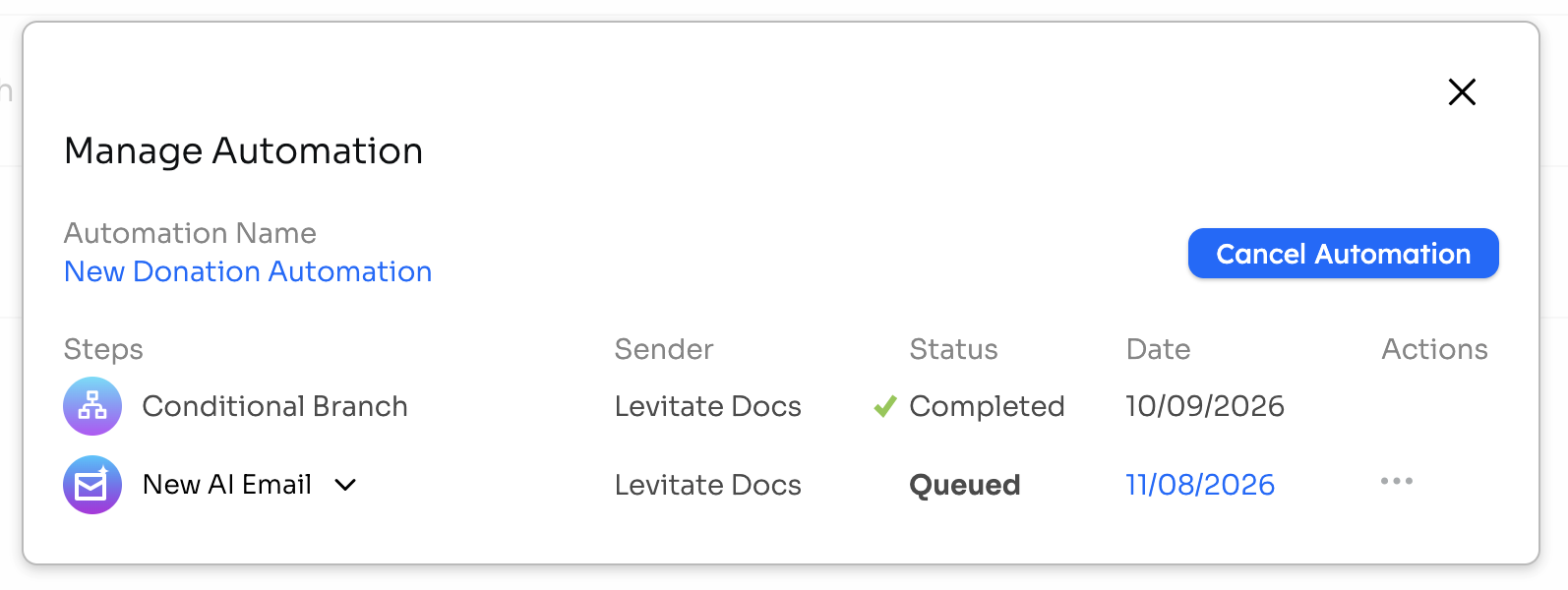
- Review step progress. Click See Report on the automation, then See Details on a contact's row. The Manage Automation pop-up shows each step's status: email steps read Sent once delivered, and a problem shows as Failed, Cancelled, or Skipped. A failed step with an error message has an info icon you can hover to read it.
- Verify prerequisites. Confirm your email/phone is connected, you haven't hit your daily quota, and the affected contacts have the required fields filled in.
- Check contact details. Verify that sample contacts aren't unsubscribed, marked as Do Not Disturb, or otherwise inaccessible to the contact owner.
- Review the schedule. Confirm whether any steps are intentionally delayed by wait periods or scheduled send times.
Note: If after 48 hours you still can't identify the cause, error messages are appearing, or a large number of contacts are affected, reach out to Levitate Support with the automation name, number of affected contacts, last successful send timestamp, and any error messages you've seen.
When to Contact Support
- You need automatic tag-based triggering enabled
- Date automations aren't processing after 48 hours
- You're unsure if your account has special trigger configurations
- Integration-based triggers aren't working as expected
- You need help setting up optimal trigger conditions
FAQs
Q: Can I make tag automations start automatically?
A: For most accounts, tag automations require manual start. Some accounts with specific integrations may have automatic tag triggering enabled. Contact support to discuss your use case.
Q: If I remove a tag, does the automation stop?
A: It depends on where the contact is in the automation flow. There are two distinct states:
- Queued (not yet started): If the contact's automation is sitting in the queue waiting to begin, removing the tag will remove them from the queue and they will not receive any steps.
- In progress (already started): If the contact has already begun working through the automation — meaning at least one step has been processed — removing the tag does not stop the automation. Their remaining scheduled steps will still send as planned.
In short: removing a tag only prevents an automation from starting. It does not cancel steps that are already in motion.
Q: When a tag is removed, will pending steps in an in-progress automation cancel before they send?
A: No. Once a contact's automation is in progress, their upcoming steps are not cancelled by a tag removal. The automation continues to completion unless you manually cancel it. To stop future steps for a specific contact, go to the automation's manage screen and cancel that contact's automation directly.
Q: Can I make dates trigger immediately instead of waiting for daily processing?
A: The daily processing schedule is a system design that ensures performance and proper sequencing. Immediate triggering isn't available for date-based automations.
Q: Why do integration-triggered automations work automatically but not tag-triggered ones?
A: Integration events (new donation, form submission) are discrete, intentional actions. Tags are often used for organization and cleanup, so manual start prevents accidental sends.
Q: What if a contact qualifies for multiple automations?
A: A contact can be in multiple automations simultaneously. Each automation runs independently based on its own trigger conditions.
Q: Do dates in the past trigger automations?
A: It depends on the automation's date range settings. If you set "7 days before birthday" and add a birthday that's tomorrow, it won't qualify because it's not 7 days away.
Q: Why was a step in my meeting- or date-anchored automation skipped instead of sending late?
A: Steps anchored to an event — a meeting, birthday, renewal date, Turning XX age, etc. — are scheduled for a specific calculated time. If that time has already passed by the time the automation evaluates the step (for example, because a meeting was booked with less lead time than the step's offset), the step is skipped rather than sent late. This is different from a step scheduled relative to when the automation itself started with no offset, which sends immediately if its time has already passed. To prevent skips, shorten the anchored step's offset to fit your typical lead time.
Q: Why did my manually started automation ignore my business hours and send all emails at once, with no spacing between them?
A: When you manually start an automation for 5 or fewer contacts, it bypasses the usual spacing between sends and the hourly send limit, so all messages go out right away.
Q: I have "send outside business hours" enabled, so why isn't my automation sending outside business hours?
A: The outside-business-hours setting only applies to the first step of an automation, and only if that first step is an email or text. If the first step is anything other than sending an email or text (a wait period, a tag, a condition, etc.), Levitate will not send outside business hours — even with the setting enabled.
Q: What happens to in-progress automations when the sending user's Levitate account is deactivated?
A: If the user is disconnected while an automation is in progress, any step that comes due while they remain disconnected will fail to send. If the user reconnects, the automation picks back up and sends the remaining steps, as long as those steps have not already passed.
Q: How do I move a contact from one automation to a different one?
A: To switch a contact from one automation to another — for example, if a meeting type changed and you need to enroll them in a different follow-up sequence — first cancel the contact's current automation, then start them in the correct one. To cancel, find the automation in your automations list, open its manage view for the affected contact, and use the Cancel Automation option. Once cancelled, you can start the appropriate automation for that contact from the Automations section.