
Levitate + Salesforce Integration: Version 2
Note: As of November 2025, Levitate has implemented a new version of the Salesforce integration.
About the Integration
The Levitate + Salesforce integration syncs your contacts twice daily so you can keep contact data current in both systems and nurture relationships without manually exporting from Salesforce.
Requirements
You need a Salesforce edition that includes API access. That means one of:
- Enterprise
- Unlimited
- Developer
- Performance
- Professional PLUS a paid add-on for API access
Your Salesforce administrator also needs to install the Levitate External Client App in Salesforce before you can connect — see Enabling the Salesforce Integration below for the steps.
Salesforce Integration Overview
Key Details
- Integration Type: API-based connection with Salesforce.
- Supported Industries: All industries.
- Data Sync Frequency: Updates occur twice daily to keep your information current.
User Access & Authentication
- The integration is powered through a single Salesforce user connection.
- This user must have valid Salesforce login credentials.
- Records are mapped based on the Owner field to ensure proper user alignment.
Salesforce Integration Settings
Core Settings
- Sync User — The Levitate user whose Salesforce connection powers the integration and enables data synchronization.
- Record Ownership Mapping — Contacts are mapped based on ownership in Salesforce using the Owner field, ensuring proper alignment between systems.
Activity Writeback
Levitate can automatically send engagement activities back to Salesforce as contact notes. Supported activity types include:
- Emails
- Notes
- Logged phone calls
- Handwritten cards
- Text messages
You can choose which activity types to sync — or opt out entirely.
Tags & Contact Data
- Standard Fields as Tags — Most standard Salesforce contact fields can be used as tags in Levitate (excluding First Name and Last Name).
- Custom Fields as Tags — Custom Salesforce fields can also be mapped as tags. See Custom Field Tags below for supported types.
- Account Fields as Tags — Fields from the linked Salesforce Account object can populate tags on every contact tied to that account. See Account Field Tags below.
Date-Based Key Facts
- Both standard and custom Salesforce date fields can be brought into Levitate as Key Facts; Last Activity Date is excluded. See Key Facts below.
- Date fields on the linked Account object can also be brought in as Key Facts. See Account Field Tags below.
Contact Status Indicators
- Deceased Contacts — See Contact Status below.
- Unsubscribe Status — See Unsubscribe Tagging below.
Contact Filtering & Segmentation
- Segment by Tags — Choose to sync only specific contacts based on selected Salesforce tags, giving you control over which records are imported.
Record Type Selection
- Contact Record Type — Select whether to sync standard Contacts or Person Accounts from Salesforce.
Note: The Contact Record Type setting cannot be changed once selected.
Campaign & Engagement Data
- Campaign Tags — Contacts can be tagged based on their Salesforce Campaign membership, using the campaign name.
- Interest Tags — When enabled, Salesforce Interests are synced as tags in the format Category: Tag (e.g., Events: Webinar). All Interests are included by default, with the option to exclude specific ones.
- Topics — Topics assigned in Salesforce can also be synced as tags in Levitate. These appear as simple labels (no category) and can be customized after enabling.
Salesforce Data Mapping
The integration reads data from the selected Contact Record Type. Fields from the linked Account object can also be mapped as tags and Key Facts — see Account Field Tags. Fields from custom objects won't sync directly (see the FAQ for a workaround).
Because Salesforce is highly customizable, field names and layouts may vary between organizations. The mappings below reflect how standard data is typically aligned between Salesforce and Levitate, but your specific setup may differ.
Contact Information
- Name Fields — Salesforce fields such as First Name and Last Name map directly to Levitate.
- Nickname: Salesforce does not include a standard nickname field. A custom field can be mapped to Nickname in Levitate — contact your Success Specialist to set this up.
Address Information
- Mailing Address — The following Salesforce fields are combined into a single Mailing Address in Levitate:
- Street
- City
- State/Province
- Zip/Postal Code
- Country
Contact Details
- Email Address — The primary email field in Salesforce syncs directly to Levitate.
- Phone Numbers — All available phone numbers associated with a contact in Salesforce are imported into Levitate.
Contact Status
- Deceased Indicator — If your Salesforce instance includes a field (such as a checkbox or date) indicating a contact is deceased, this can be mapped in Levitate. Once configured, Levitate will automatically archive these contacts or exclude them from syncing. Archived contacts won't display a Key Fact for the date of death and are excluded from active communication.
Professional Information
- Job Title — Salesforce Title fields map to Job Title in Levitate. If your organization uses a different field, contact your Success Specialist to remap it.
- Company Name — The Salesforce Account Name field maps to Company Name in Levitate.
Key Facts
Key Facts surface important dates from your Salesforce contacts (birthdays, anniversaries, renewals, etc.) so you can time outreach around them.
Standard Date Fields
- Birthday — The Salesforce Birthdate field maps directly to the Birthday Key Fact in Levitate. If your organization uses a different field, contact your Success Specialist to remap it.
Custom Date Fields
- Additional Key Dates — Any custom date field in Salesforce can be brought into Levitate as a Key Fact (for example, anniversaries, renewal dates, or other important milestones).
- These fields can be selected and managed within your settings.
Tags
Tags organize and segment your contacts using data synced from Salesforce, so you can target the right audiences in email and campaigns.
Default Tagging
- Salesforce Source Tag — Every contact synced from Salesforce is automatically tagged to indicate its origin. This helps you quickly identify which contacts are managed through the integration.
Custom Field Tags
- Supported Fields — Salesforce fields with the following types can be converted into tags in Levitate:
- Picklist
- Multi-select picklist
- Checkbox (true/false)
- Text (string)
- How It Works — When enabled, each field value is added as a tag on the contact, typically prefixed with the field label from Salesforce for clarity.
- Setup — These fields can be selected and enabled within your settings.
- Note: Tags longer than 60 characters will be automatically shortened for display.
Account Field Tags
- What It Does — Fields from the Salesforce Account object can populate tags on all contacts linked to that account. Each tag follows the format Field Label: value (for example, Industry: Financial Services).
- Account Date Fields as Key Facts — Date fields on the Account object can also be mapped as Key Facts on the associated contact records, the same way custom date fields on the Contact object work.
- Availability — This applies only to integrations configured to use the Contact record type (not Person Accounts).
- Setup — Contact your Success Specialist to enable Account field mappings for your integration.
Note: Enabling an Account field mapping applies the tag to every contact linked to that account. For large accounts, this can update tags for thousands of contacts at once and may trigger any tag-based automations you have configured. Review your active automations before enabling a new Account field mapping.
Owner Tagging
- Contacts are tagged based on their assigned Salesforce Owner (User Name).
- If no owner is assigned, the tag will display as Unassigned.
- If the owner is no longer active in Salesforce, the tag will display as Deactivated.
Unsubscribe Tagging
- If your Salesforce instance includes a field indicating that a contact has opted out of communications, this can be mapped to an Unsubscribe tag in Levitate.
- Supported Field Types:
- Checkbox (true/false)
- Date field (e.g., unsubscribe date)
- Setup: This field must be selected within your settings to enable the mapping.
Enabling the Salesforce Integration
- Salesforce Admin Installation — Your Salesforce administrator will first need to install the Levitate External Client App through Salesforce. Reach out directly to your Success Specialist for the steps to do so.
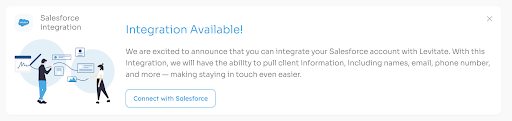
- Connect in Levitate — Once the app is installed, log in to Levitate and connect by clicking through the new Salesforce dashboard card. This is what the new card looks like:
Don't see the dashboard card?
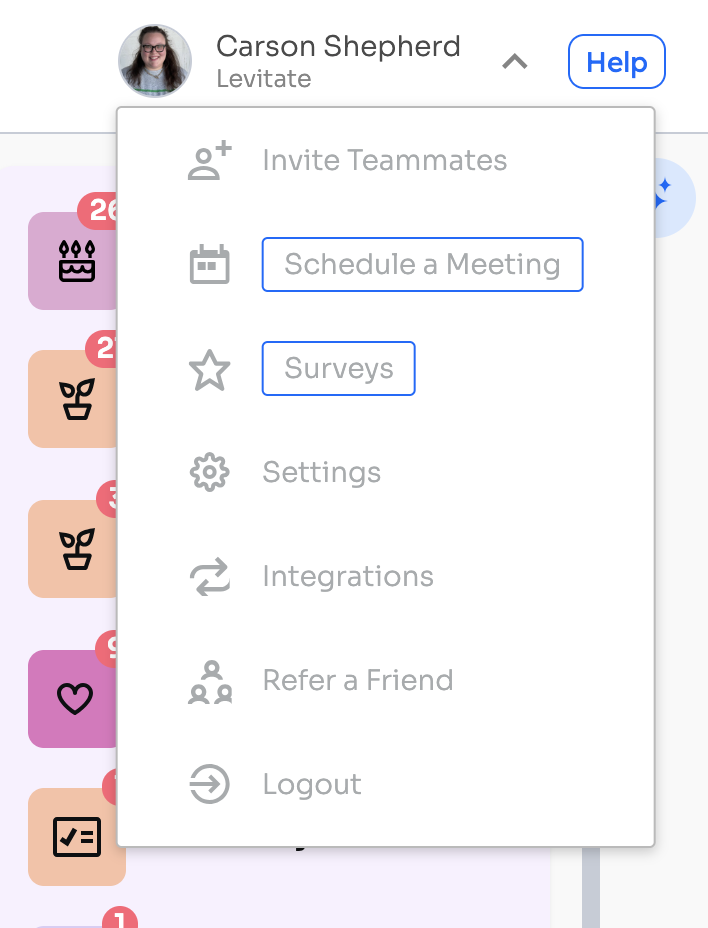
First, access the menu under your name in the upper right corner of the Levitate dashboard and choose Integrations.
From there, you'll see Salesforce as an option and you will choose to Manage.
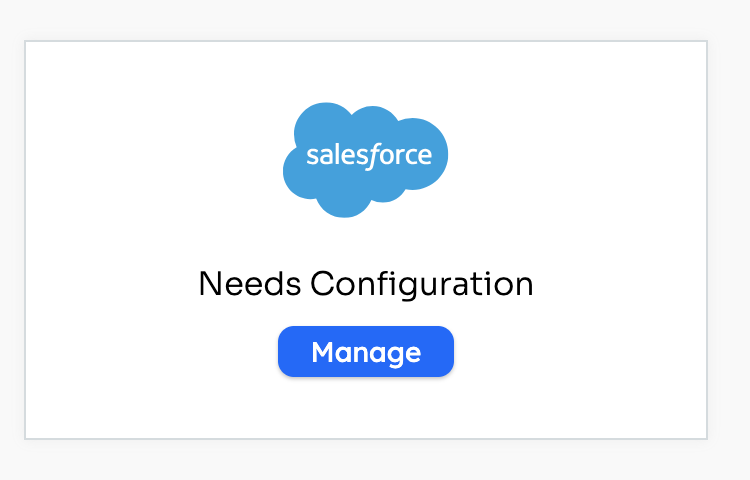
Once you click manage, you will be prompted to enter your login credentials for Salesforce to get connected.
FAQs
Q: Do we push changes made to contacts in Levitate back into Salesforce?
A: No. Salesforce is your CRM and remains your source of truth for contact info — we just read the contacts as you have them in Salesforce.
Q: Will the integration work if my Salesforce instance is highly customized or uses an overlay?
A: In most cases, yes — but it depends on how your data is structured.
Salesforce is highly customizable, and some organizations use overlays (custom-built layers on top of Salesforce — Practifi for financial services is a common example) that significantly change how data is organized. Because of this, the best way to confirm compatibility is to test the integration.
The integration works against whichever Contact Record Type you select during setup — standard Contacts and Person Accounts are both fully supported. What matters is that the data you want to sync lives on that record type. We don't pull from entirely separate custom objects, but custom fields on the selected record type can be brought in as tags or Key Facts, and fields on the linked Account object can be brought in as well — see Account Field Tags.
Q: Can we use fields from Accounts (or other objects) as tags on Contacts?
A: Account fields, yes. Other objects, no.
Fields on the Salesforce Account object can be mapped as tags — and Account date fields as Key Facts — on every contact linked to that account. This is available for integrations configured to use the Contact record type; see Account Field Tags for details and setup.
Fields on custom objects can't be mapped directly, and Account field mapping isn't available for integrations using the Person Account record type. In those cases, there is a common workaround:
- Mirror the desired data onto the Contact record using Salesforce automation.
- Once the data exists on the Contact, it can be used as a tag in Levitate.
Note: Formula fields are not a reliable option for this. Even though they may accurately reflect fields from other objects, we can't observe changes to them unless other fields change at the same time.
Q: Does the integration support households?
A: No. While some Salesforce setups use Accounts or custom objects to represent households, the integration does not currently group contacts into households within Levitate.
Q: Can Levitate sync leads, opportunities, or prospects?
A: The integration does not directly sync Opportunities or other non-contact objects.
However, if leads or prospects are stored as Contacts in Salesforce, they can be synced and even tagged (for example, using a custom field to indicate lead status).
Q: Do Salesforce permissions carry over into Levitate?
A: Not exactly.
- The integration only syncs data that the connected Salesforce user has access to.
- Contact ownership can be mapped to users in Levitate.
- You can configure visibility settings in Levitate (such as private contacts) to control access.
However, Levitate does not automatically replicate all Salesforce visibility rules.
Q: How long does the initial sync take?
A: Sync times can vary depending on the size and complexity of your Salesforce data.
- Typical sync times range from 10 minutes to about an hour.
- Larger or more complex accounts may take longer.
Q: Where do activities from Levitate appear in Salesforce?
A: All activities written back from Levitate are saved as Notes in Salesforce (not Activities).
- If Enhanced Notes are enabled, they appear in a dedicated Notes section with rich formatting.
- Otherwise, they appear as plain text under Notes & Attachments.
Keep in mind that the exact layout may vary depending on your Salesforce configuration.
Q: Contacts in a Salesforce Campaign are not appearing in the expected Levitate tag group — why?
A: Salesforce Campaign membership is a separate object type from Contacts, so it requires its own sync setting. When the Campaign Tags feature is enabled, Levitate reads each contact's Campaign membership and creates tags in the format Campaign: [Campaign Name]. If contacts are not appearing in the expected tag group, the most likely cause is that Campaign Tags have not been enabled in your integration settings.
To verify or enable this setting, contact your Success Specialist. Once Campaign Tags are turned on, the next scheduled sync will apply the tags to your contacts.
Only Campaign members that are Contacts (or Person Accounts, if your integration uses that record type) are synced. Campaign members that are Salesforce Leads or Account records aren't synced to Levitate, so they won't appear in the tag group. If contacts are missing, check in Salesforce whether those Campaign members are Leads or Accounts.
Note: Salesforce Campaign membership records are distinct from standard Contact fields. If a contact was added to or removed from a Campaign between sync cycles, the tag group in Levitate will reflect that change after the next sync completes.
Q: Do both inbound (replies from contacts) and outbound (texts you send) messages write back to Salesforce?
A: Yes. When text message writeback is enabled, Levitate writes a single conversation digest note to Salesforce that includes all messages in the conversation window — both texts you sent and replies received from the contact. Each message in the note is labeled with the sender's name, so you can tell who sent each individual message.
Q: Can I tell inbound replies apart from outbound texts in the Salesforce note?
A: Yes. Each message line in the digest note is prefixed with the sender's display name — your name (or the Levitate user who sent the message) appears next to outbound texts, and the contact's name appears next to inbound replies. The note is not split into separate Salesforce records for inbound versus outbound — all messages from the same conversation period appear in one note.
Q: A new advisor or office was added to Salesforce but their contacts are not appearing in Levitate — why?
A: Adding a new user or office location to Salesforce does not automatically trigger an immediate sync to Levitate. Contact data for newly added advisors or offices will be picked up during the next scheduled sync cycle (the integration syncs twice daily). If the contacts still have not appeared after a full sync cycle has completed, reach out to your Success Specialist — they can review the configuration and trigger a manual resync if needed.
Note: The integration maps contacts to Levitate users based on the Owner field in Salesforce. If a new advisor's Salesforce user account is not yet correctly assigned as the owner of their contacts, those contacts may not align to the right user in Levitate even after syncing. Confirm ownership is set correctly in Salesforce before requesting a resync.
Q: Do I need to notify Levitate support each time a new firm or user group is added to Salesforce?
A: Not necessarily for routine additions. Once the integration is configured, new contacts owned by any recognized Salesforce user are included in the regular twice-daily sync automatically — you do not need to contact support for each new user or group that is added.
However, if you are adding an entirely new firm or organizational unit that requires a distinct Levitate account or a change to how the integration is configured (for example, new ownership mappings or a different record type scope), you should reach out to your Success Specialist before the sync runs. Configuration changes need to be made on the Levitate side before the sync can pick up those records correctly.
Q: Does Levitate automatically sync the Salesforce opt-out or email opt-out field (such as HasOptedOutOfEmail or PersonHasOptedOutOfEmail) to Levitate's unsubscribe status?
A: Not automatically. Salesforce opt-out fields — including HasOptedOutOfEmail (on standard Contacts) and PersonHasOptedOutOfEmail (on Person Accounts) — are not mapped to Levitate's unsubscribe status by default.
However, the integration does support mapping a Salesforce opt-out field to an Unsubscribe tag in Levitate. Any checkbox or date field on the Contact or Person Account record can be selected as an unsubscribe indicator. Once configured, if the field indicates the contact has opted out (checkbox set to true, or a date on or before today), Levitate will automatically apply the Unsubscribe tag during the next sync. To set this up, contact your Success Specialist — they will configure the field mapping in your integration settings.
Q: How can I tell whether my Salesforce integration is still connected?
A: The most reliable way is to navigate to Integrations (click your name in the upper right corner of the Levitate dashboard and choose Integrations, then select Salesforce → Manage). If the integration is actively connected, you will land on the Manage tab. If the connection has lapsed, you will instead see the Connect tab, which prompts you to re-authorize. You can also watch for signs that syncing has stopped — for example, contacts that should have been updated in Salesforce not reflecting changes in Levitate after a full sync cycle (the integration runs twice daily).
Q: My Salesforce integration appears to have been disconnected. How do I reconnect it?
A: Navigate to Integrations (click your name in the upper right of the Levitate dashboard, choose Integrations, then select Salesforce). If the connection has lapsed, you will be on the Connect tab. Click Connect and complete the Salesforce login and authorization steps — this re-authorizes Levitate to access your Salesforce data. Once reconnected, the next scheduled sync will resume automatically. If the Connect button does not appear or you continue to experience issues after reconnecting, reach out to your Success Specialist for assistance.