
Opportunity Boards
To access Opportunity Boards, you'll choose 'Data Boards' from the dashboard's main navigation.
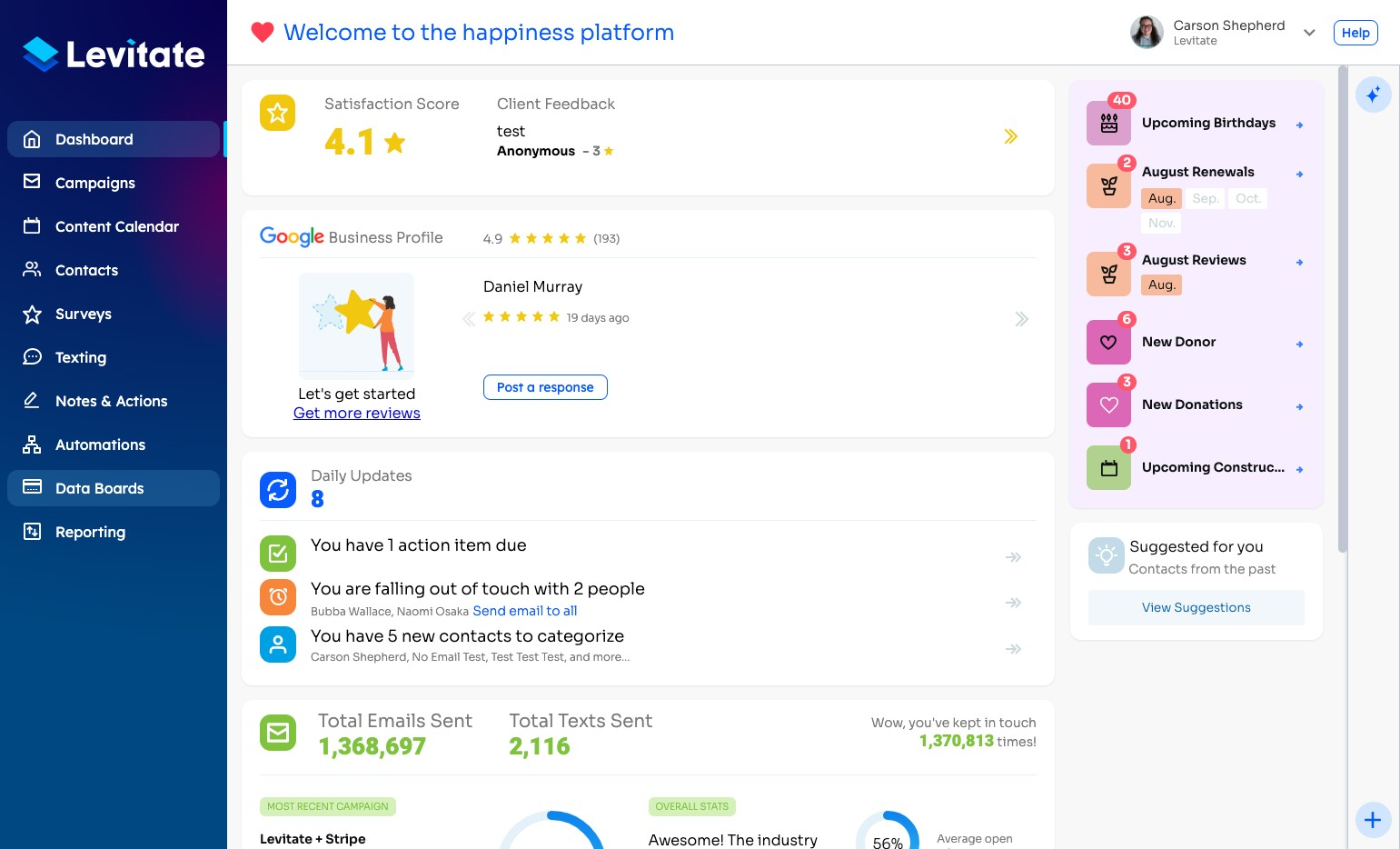
From granular details for users and high-level information for leadership, Opportunity Boards allow companies to visualize and track deal and relationship progression. Levitate admins can design each opportunity board with phases specific to their organization. From there, users can add details and slide from phase to phase as the relationship progresses.
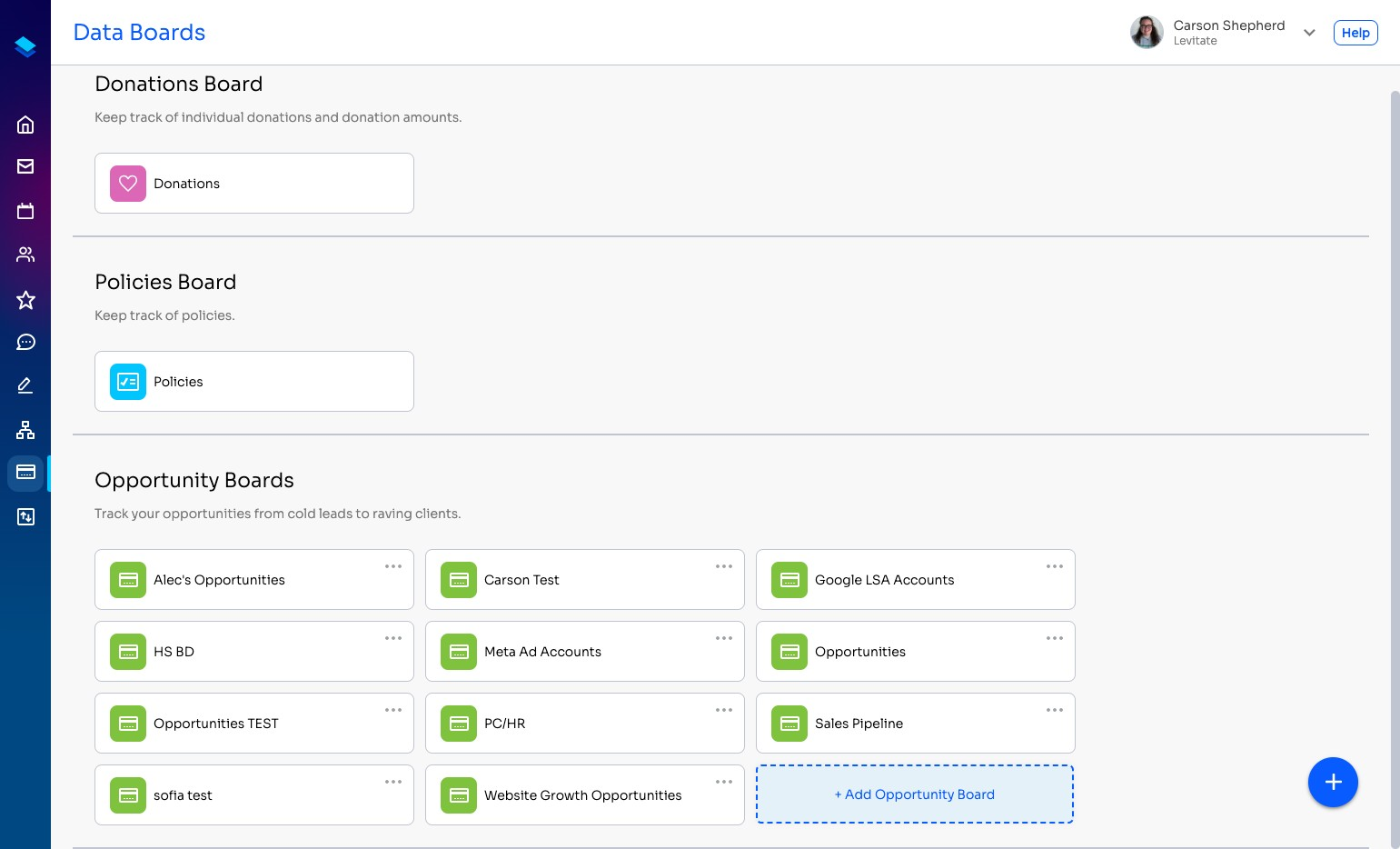
There can be multiple Opportunity Boards per account — to create a new Opportunity Board, choose + Add Opportunity Board.
Creating an Opportunity
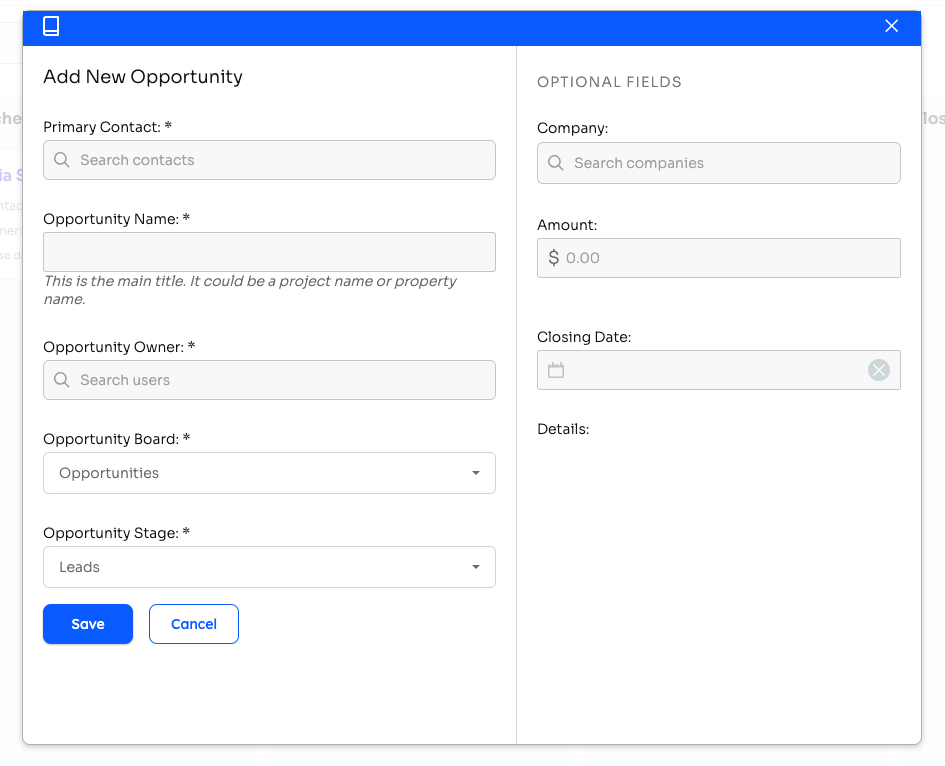
Users can create contact-specific opportunities to track the details, values, and progression of their deals.
Designing the Board
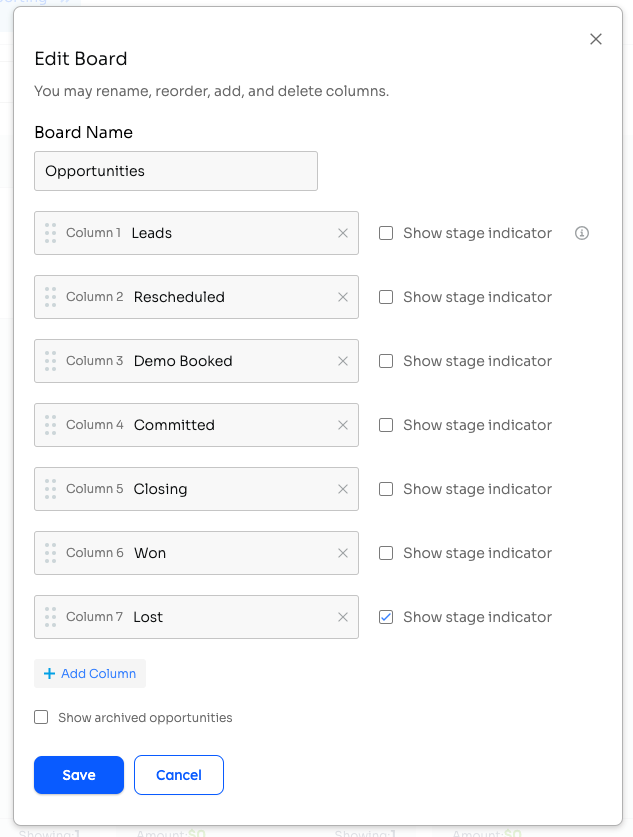
Admins can customize columns to reflect their organization's unique cycle.
Default Owner
When designing a board, admins can set one or more Default Owner for the board. New opportunities created on that board without their own assignees — for example, opportunities added manually with the owner field left blank, or imported via CSV without an owner — are automatically assigned to those users. This is useful for boards where the same person or team owns incoming deals.
Note: opportunities created by an automation are assigned to the automation's sender (the user who owns the automation), not the board's Default Owner.
To configure it, open the board settings and use the Default Owner picker to select one or more users. You can change or clear this setting at any time.
Importing data to the board using spreadsheets
Now, data for an opportunity board can be imported via CSV spreadsheet!
Available fields to import:
- Amount
- Close Date
- Company
- Details
- Opportunity Name
- Opportunity Owner*
- Opportunity Stage*
- Primary Contact*
Starred fields are required— if the CSV is missing any of the starred fields, the spreadsheet will not import.
Note: Mass importing contacts that are already on the board in one stage will not move them to another stage — it will create duplicates.
Some finer details
- Opportunity Owner must be the email address or ID of an existing user on the customer account
- Primary Contact must be the email address or ID of an existing contact in the customer account. If an email address is given and no contact is found, we will attempt to create a contact with that email address.
- Opportunity Stage must be the name of an existing stage on the board.
- If Opportunity Name is not provided, we will default it to the name of the Primary Contact
- If Company is provided, it must be the ID or the name of an existing Company in the customer account.
Utilizing the Board
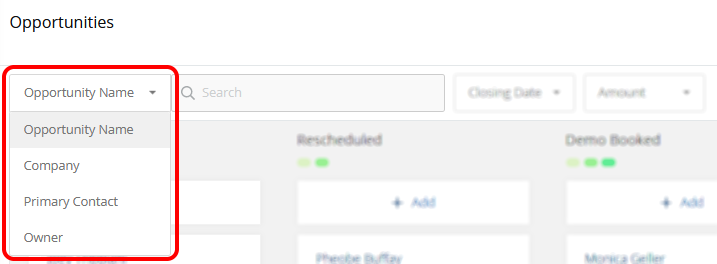
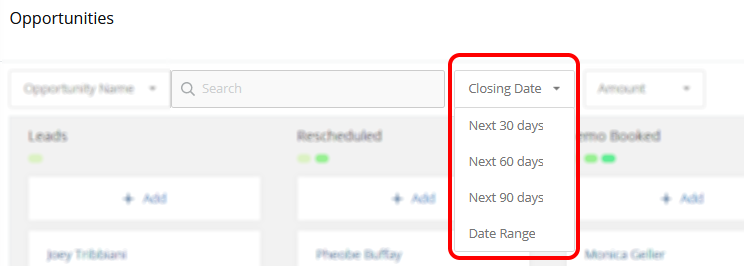
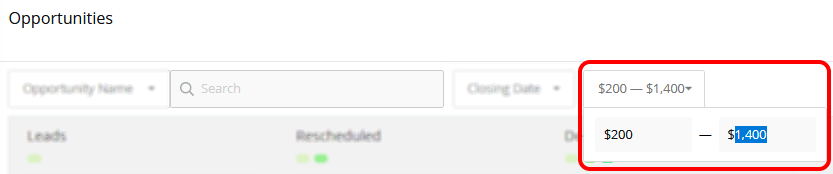
Users can filter the board for a customized view!
Automations & Opportunities
Opportunities can be created or updated through an automation step. The step in the Automation allows the user to choose the Opportunity board, the opportunity stage, and the dollar value for the created or updated opportunity. Read more about Automations + Opportunities here.
By default, the new opportunity uses the contact's name as the opportunity name. You can configure the automation step to use the contact's company name instead — useful for B2B workflows where opportunities track companies rather than individual people.
Opportunity Created Trigger
Automations can now be triggered when a new opportunity is created on a specific board. When building an automation, choose the Opportunity Created trigger and select the target Opportunity Board. The automation fires each time a new opportunity is added to that board — whether created manually, via CSV import, or by another automation step.
Note: This trigger is only available on accounts with the Opportunity Boards feature enabled. Contact your Success Specialist if you don't see it.
Responsive Board Header
The Opportunity Board header collapses at narrower screen widths so all board controls remain accessible on smaller displays. If your account has View Only access enabled for certain users, a persistent View Only badge appears at the top of the board whenever those users are viewing it.
Advanced Reporting
The Advanced Reporting panel gives you a deeper view into your Opportunity Board data — from high-level summaries to granular activity — all in one place. Open the panel from the board toolbar to start exploring.

Summary View
The summary view shows aggregated metrics across your board, such as total opportunity count, combined deal value, and stage-level breakdowns. Use it to get a quick pulse on pipeline health without digging into individual cards.
Details Drilldown
The details drilldown lets you click into any summary metric to see the underlying opportunities that make up that number. You can review each opportunity's name, stage, owner, and value in a sortable table.
Activity Log
The activity log surfaces a chronological record of changes made to opportunities on the board, including stage moves, edits, and ownership changes. Use it to audit recent activity or track how deals are progressing over time.
Filters
You can narrow the reporting view using filters such as date range, opportunity owner, and stage. Filters apply across both the summary and drilldown views so your data stays consistent as you explore.
Shareable Links
Once you have a filtered view configured, you can generate a shareable link that opens the same report for anyone with access to the board. Share it with teammates or leadership for aligned, repeatable reporting.